Watercolour Eucalyptus and Green Leaves: A Guide to Professional Design Application
The aesthetic of organic, hand-painted botanicals has become a cornerstone of modern design, particularly for wedding invitations, branding materials, and lifestyle products. Watercolour eucalyptus and green leaves offer a soft, sophisticated texture that digital vectors often struggle to replicate authentically. However, simply downloading a clip art pack is not enough to guarantee a professional result. Many creators rush into using these assets without understanding file compatibility, resolution requirements, or licensing nuances, leading to pixelated prints and frustrated clients.
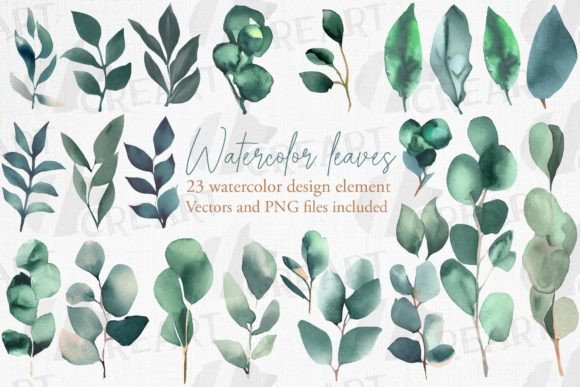
This guide explores the common pitfalls associated with using botanical design elements and provides practical advice on how to leverage a comprehensive pack—such as one containing 23 different watercolor set elements—to elevate your projects efficiently.
Understanding the Value of High-Quality Botanical Assets
When designers search for watercolour eucalyptus and green leaves, they are looking for more than just an image of a plant. They seek a mood. The translucent quality of watercolor allows for layering, creating depth and realism that flat graphics cannot achieve. A well-curated pack typically includes various components: full branches, individual leaves, sprigs, and perhaps floral accents. These elements are versatile, suitable for dressing up party invitations, wall decor, clothing, stickers, and web designs.
The true value lies in the flexibility of the files. A robust package should provide multiple formats to ensure compatibility across different software ecosystems. For instance, receiving 23 PNG images with transparent backgrounds allows for immediate drag-and-drop functionality in most editors. Meanwhile, vector files like SVG, EPS, and Illustrator formats ensure that colors can be changed and objects resized without any quality loss. This dual approach caters to both beginners who need ease of use and professionals who require total control.
Mistake 1: Ignoring File Format Compatibility
One of the most frequent errors creators make is assuming all image files work the same way. A common scenario involves a small business owner purchasing a design pack for T-shirt printing, only to discover they have downloaded low-resolution JPGs instead of scalable vectors. JPG files do not support transparency, meaning you will have a white box around your eucalyptus leaves unless you manually remove the background—a time-consuming and often imperfect process.
The Better Approach: Always verify the contents of the package before starting your project. A high-quality bundle should include:
- 23 PNG files: High-resolution with transparent, invisible backgrounds for easy layering on any color.
- 23 SVG files: Ideal for web design and cutting machines like Cricut or Silhouette.
- Vector formats (EPS/AI): Essential for large-format printing where scaling is required.
- Layered PSD files: Crucial for Photoshop users who want to adjust lighting, shadows, or color hues individually.
By ensuring you have access to vector objects, you guarantee that your design remains crisp whether it is printed on a small wedding favor tag or a large banner.
Mistake 2: Overlooking Resolution and Print Quality
Digital screens are forgiving; printers are not. A frequent misunderstanding among hobbyists is that an image looking sharp on a monitor will print clearly on paper. Watercolor textures rely on subtle gradients and fine details. If the source files are low resolution, these nuances disappear, resulting in a muddy, amateurish appearance. This is particularly detrimental for wedding invitations, where tactile quality and visual elegance are paramount.
To avoid this, check that the PNG and JPG files provided are high-resolution. Typically, 300 DPI (dots per inch) is the standard for print-ready materials. If the pack specifies "high-resolution," it should meet this criterion. Furthermore, ensure that no logo or paper texture appears on the purchased items. Clean, isolated elements allow you to place the individual clipart on any background you like, maintaining the integrity of your original design vision.
Mistake 3: Failing to Customize Color Palettes
While the natural greens of eucalyptus are beautiful, they may not match every brand identity or wedding theme. A common oversight is using the default colors without adjustment, leading to a disjointed look when combined with other design elements. Since watercolor effects involve complex blending, simply changing the hue in basic editing software can sometimes break the realistic texture.
Practical Advice: Utilize the layered Photoshop file or vector formats included in the pack. With vector files, you can change colors instantly without losing the watercolor effect’s integrity. In Photoshop, use adjustment layers like "Hue/Saturation" or "Color Balance" clipped to the specific leaf layer. This non-destructive method allows you to experiment with sage, olive, or teal tones until you find the perfect match for your project, whether it is for scrapbooking, web design, or promotional materials.
Mistake 4: Neglecting Licensing and Usage Rights
Many creators assume that once they buy a clip art pack, they can use it however they wish. However, licensing terms vary significantly. Some packs allow for personal use only, while others permit commercial use for physical products but restrict digital resale. Using watercolour eucalyptus and green leaves in a logo for a client might violate terms if the license prohibits trademark usage.
Before integrating these elements into products for sale—such as shirts, cards, or stickers—read the license agreement carefully. Ensure the pack allows for commercial application. A reputable provider will clearly state that files are compatible for use with a variety of image editing and crafting programs, and will specify any limitations. This due diligence protects your business from legal issues and ensures ethical usage of artistic work.
Maximizing Efficiency with Organized Assets
A pack containing 23 different elements can become chaotic if not managed properly. Beginners often waste time searching through folders for the right leaf shape. To streamline your workflow, organize your files immediately after download. Create subfolders for PNGs, Vectors, and Source Files. Rename files descriptively if necessary (e.g., "Eucalyptus_Sprig_01.png").
Additionally, take advantage of the transparency in PNG files. When designing for web or digital invitations, layering multiple elements can create a lush, custom arrangement that looks unique. Rotate, flip, and scale the leaves to build composition balance. Because the backgrounds are invisible, you can place these elements over textured papers, solid colors, or photographs without awkward edges.
Final Considerations Before You Buy
Choosing the right design resources is an investment in your creative efficiency. When evaluating a watercolour eucalyptus and green leaves clip art pack, look for completeness. Does it offer both raster and vector options? Are the files truly high-resolution? Is the customer support responsive if technical issues arise?
Remember, the goal is to enhance your creativity, not hinder it with technical limitations. By avoiding common mistakes related to file formats, resolution, and customization, you can produce stunning, professional-grade designs for weddings, marketing materials, and personal projects. Whether you are a freelancer creating branding for a boutique or a hobbyist making handmade cards, the right tools make all the difference. Take the time to understand your assets, and your designs will reflect the care and professionalism your audience expects.